How to install Monero Wallet on GNU/Linux
Step-by-step instructions to download, verify, and install the Monero Wallet GUI or CLI on any GNU/Linux distribution.
Introduction
Monero represents a decentralized cryptocurrency emphasizing user privacy. The Monero Wallet, available across most operating systems and Linux systems specifically, offers both graphical and command-line interfaces. This guide provides step-by-step instructions for downloading, verifying, and installing Monero Wallet on major Linux distributions.
Learning Objectives
- Download Monero Wallet
- Verify download integrity
- Install Monero Wallet GUI and CLI versions on Linux

Requirements
| Category | Details |
|---|---|
| System | All GNU/Linux Distributions |
| Software | Monero Wallet GUI or CLI |
| Access | Root privileges or sudo command |
Command conventions:
#= root-privileged execution$= regular non-privileged user execution
Installation Steps
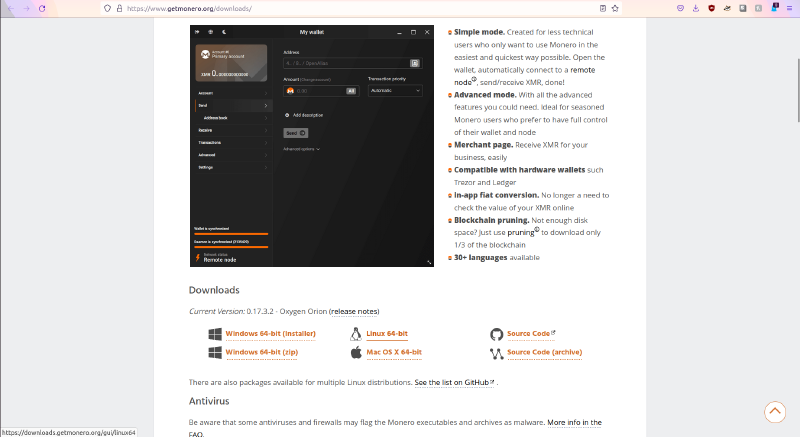
1. Download Monero Wallet
Visit the official Monero download page and select your preferred edition (GUI or command line).
2. Verify the Download
Download binaryFate’s GPG key:
$ wget -O binaryfate.asc https://raw.githubusercontent.com/monero-project/monero/master/utils/gpg_keys/binaryfate.asc
3. Check Fingerprint
$ gpg --keyid-format long --with-fingerprint binaryfate.asc
Expected fingerprint output:
pub   rsa4096/F0AF4D462A0BDF92 2019-12-12 [SCEA]
      Key fingerprint = 81AC 591F E9C4 B65C 5806  AFC3 F0AF 4D46 2A0B DF92
uid                           binaryFate <binaryfate@getmonero.org>
4. Import Signing Key
$ gpg --import binaryfate.asc
5. Download Hashes
$ wget -O hashes.txt https://www.getmonero.org/downloads/hashes.txt
6. Verify Hash Signature
$ gpg --verify hashes.txt
Look for “Good signature” confirmation.
7. Verify SHA256 Checksum
$ shasum -a 256 monero-gui-linux-x64-v0.17.3.2.tar.bz2
Compare returned checksum against the hashes.txt file.
8. Extract Files
$ tar xf monero-gui-linux-x64-v0.17.3.2.tar.bz2
$ cd monero-gui-linux-x64-v0.17.3.2
9. Launch Wallet
$ ./monero-wallet-gui
OR
$ ./monero-wallet-cli
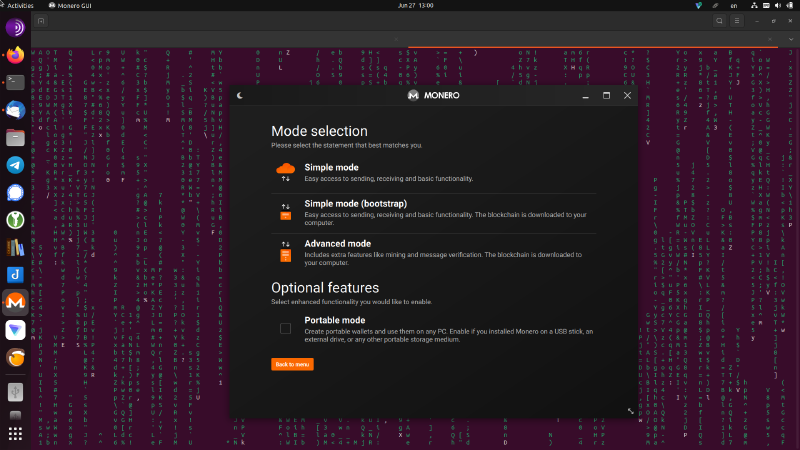
10. Select Mode
Follow installation prompts to select desired mode (GUI vs CLI).
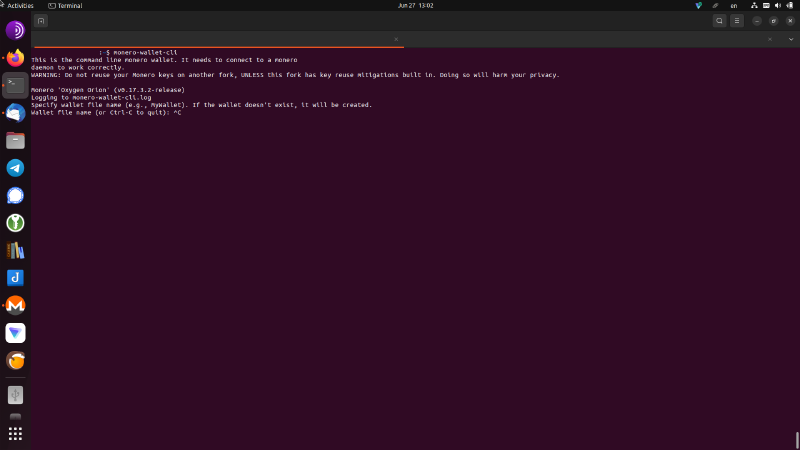
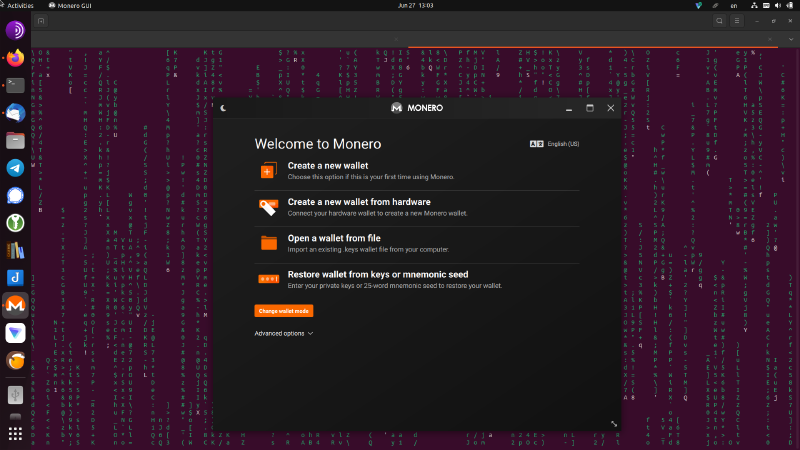
11. Create or Access Wallet
Create a new wallet or log into an existing one during the final installation step.
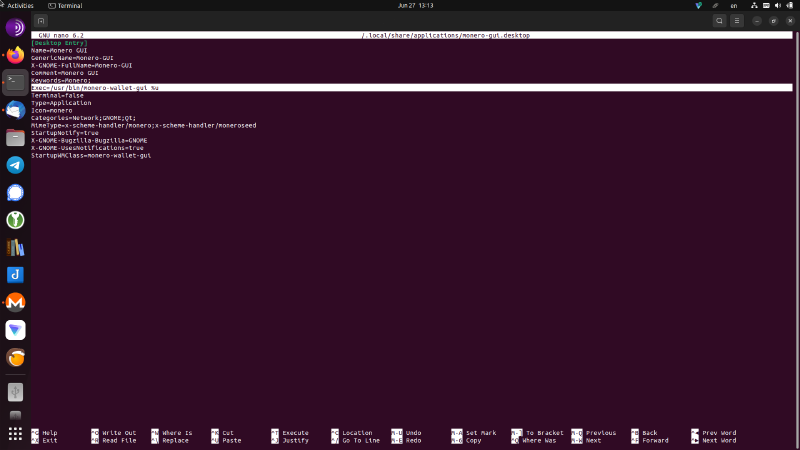
12. Configure Shortcuts
Edit the desktop shortcut configuration if relocating files:
$ nano ~/.local/share/applications/monero-gui.desktop
Conclusion
This tutorial covered installing both GUI and CLI versions of Monero Wallet across Linux distributions. Monero emphasizes user privacy while maintaining accessibility across multiple client platforms.